How to manage files for an Agiflow project
Use the Artifacts tab to upload, search, filter, preview, download, and delete project files. A compatible AI assistant can also link an existing artifact or attach a ChatGPT conversation file to a task.
Last updated
At a glance
Use the Agiflow interface to manage the full project file list.
ChatGPT does not provide project-wide artifact discovery. If you need to browse project files from ChatGPT, use the project's Artifacts tab.
Manage files in Agiflow
Prerequisites
Sign in to Agiflow and make sure you can access the project. If you want to upload a file, have it ready on your device. Open the project and switch to the Artifacts tab next to Board and List. The Artifacts view shows every file uploaded to the project, with the newest files at the top.
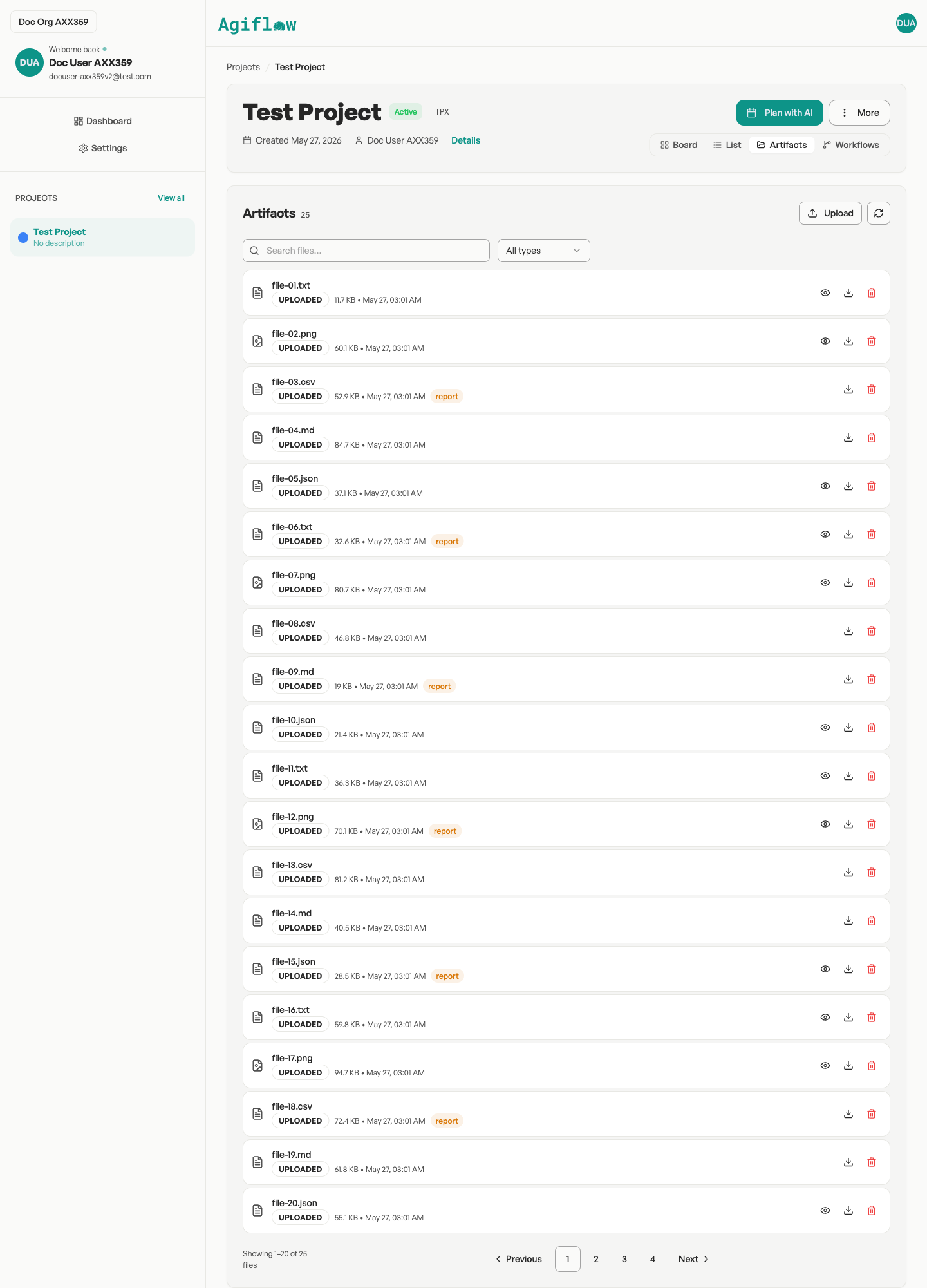
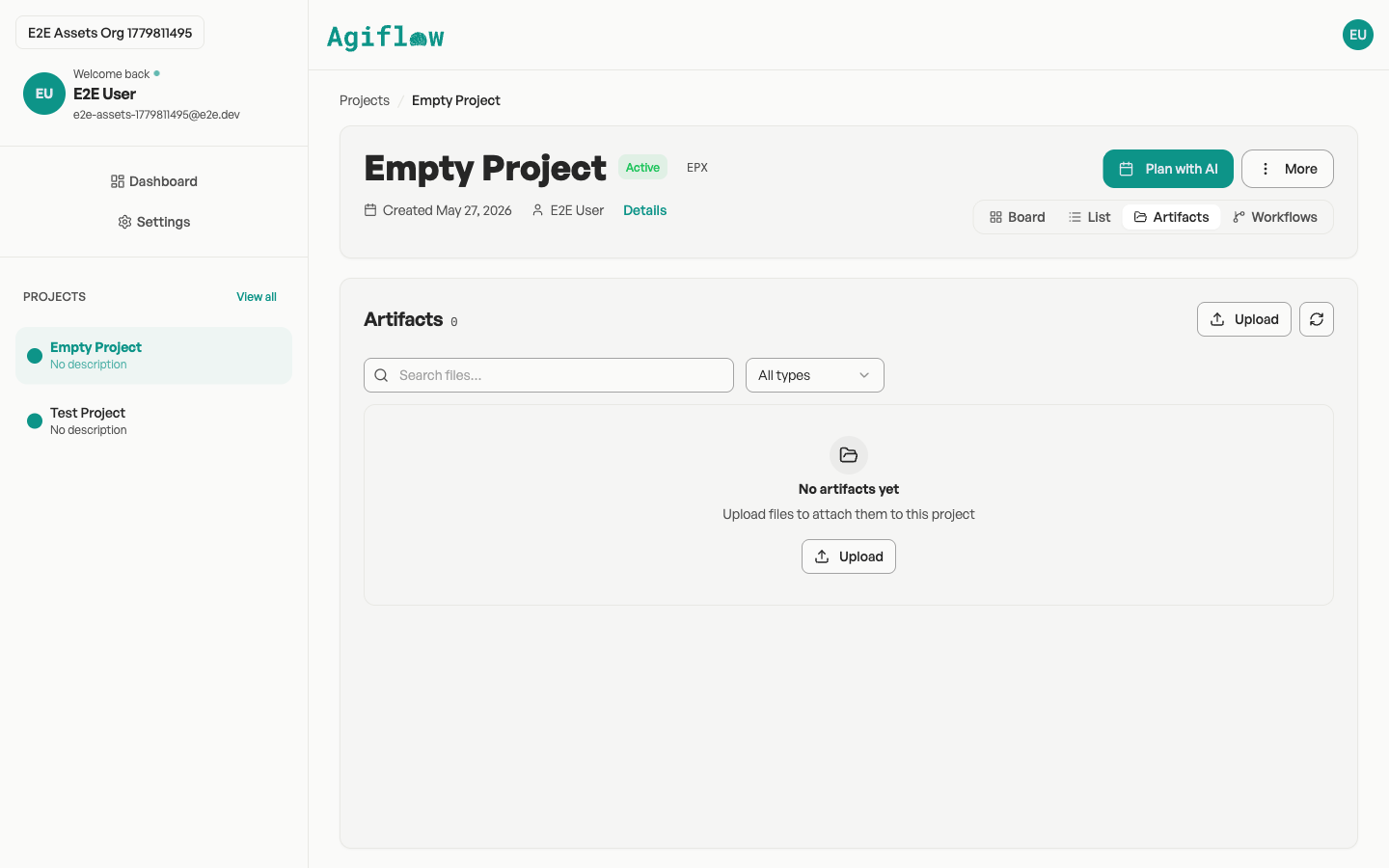
If no files have been uploaded yet, you will see the empty state: No artifacts yet — Upload files to attach them to this project.
Upload and find project files
Click Upload at the top of the Artifacts view.
Select a file from your computer.
The file appears in the list with a Pending status while it uploads and verifies.
Once verification succeeds, the status changes to Uploaded.
You can upload one file at a time. While an upload is in progress, the button shows Uploading….
Find files quickly
Use the search bar and filters to find files in large projects.
Search files…
All types
- All types — every file
- Images — image files
- Documents — text and JSON files
- Other — everything else
Labels
If no files match your search, you will see No matching files — Try adjusting your search or filters.
When there are more than 20 files, pagination appears at the bottom showing Showing X–Y of Z files.
Preview, download, or delete a file
Open the preview dialog
Click the eye icon on a file row to open the preview dialog. The dialog title shows the file name.

Images
Text and JSON files
Other file types
If a file is still uploading, the preview button is disabled and shows Preview available after upload completes. The preview dialog also explains: This file is still uploading. Preview becomes available after verification succeeds.
Close the dialog to return to the file list.
Save a file to your computer
Click the download icon on a file row. The file opens in a new browser tab using a temporary secure link.
If a file is still uploading, the download button is disabled and shows Download available after upload completes.
Remove a file from the project
Click the trash icon on a file row to delete the file from the project. Deleted files are removed immediately and cannot be recovered.
View files on a task
When you open a task, a separate Artifacts card lists artifacts associated with that task, including files linked or attached to it. Files generated during sandbox or agent execution can also appear here. These files behave the same way as project files, you can preview and download them.
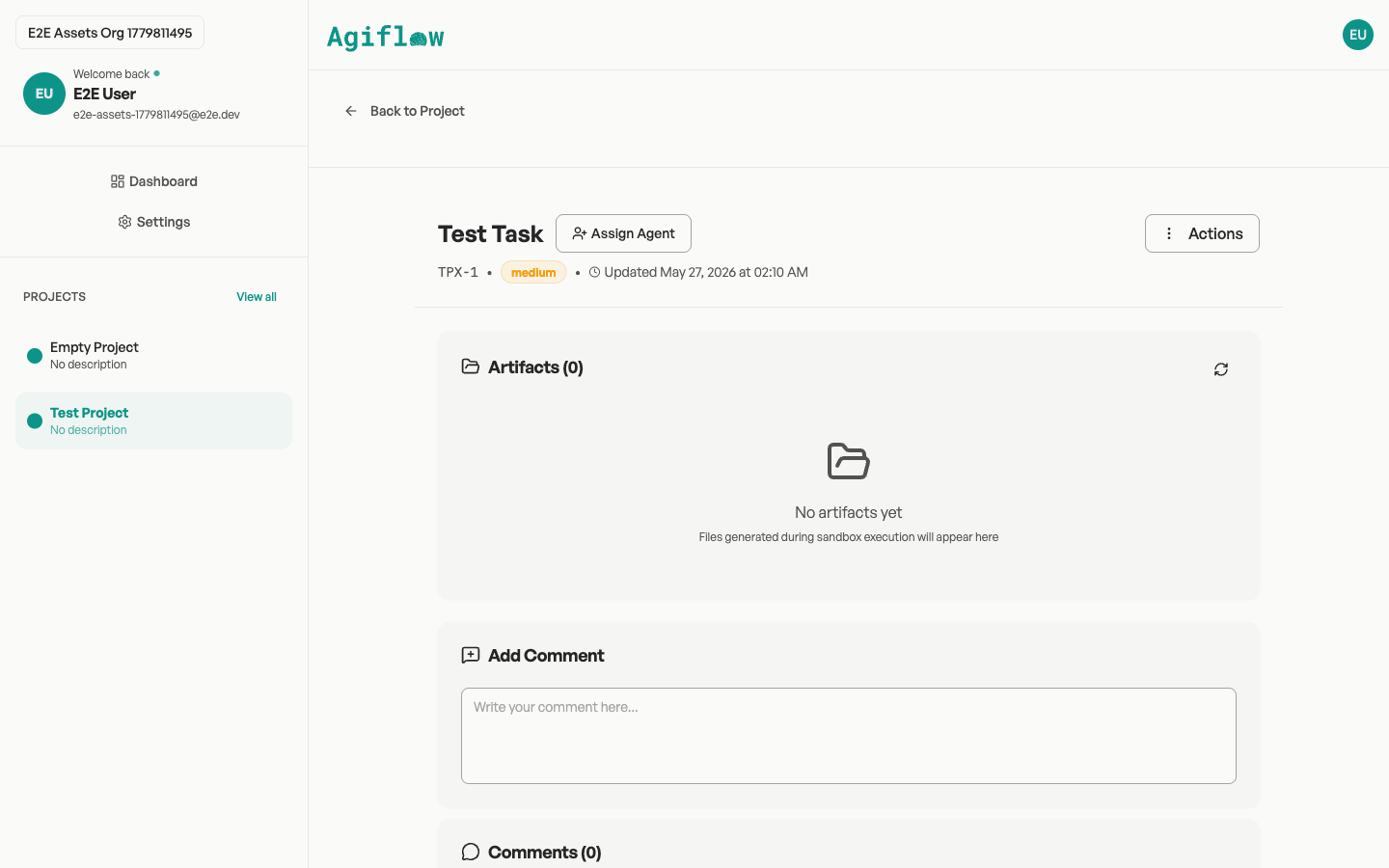
The task Artifacts view shows Files generated during sandbox execution will appear here when no files exist yet. Click Load more to fetch additional files if the list is long.
Expected result
The file appears in the project Artifacts list. If it is linked to a task, it also appears in that task's Artifacts section.
Verify your files
Confirm that the expected filename appears in the project list. If applicable, open the task and confirm the same filename in its Artifacts section. Use preview or download to confirm that it is the correct file.
Limitations and recovery
- You select one file in each upload action. Repeat Upload for additional files.
- A pending file cannot be previewed or downloaded. Wait for the upload to complete, then try again.
- If you see Preview unavailable for this file, download the file instead.
- If you see No matching files, clear the search text and filters.
- Deletion is permanent. Upload the source file again if it was removed by mistake.
Next steps
Last updated July 12, 2026
Keep the board moving
Finish able to keep source files and assistant-generated output attached to the right work.
Was this guide helpful?