Tutorial
Get started with Agiflow and ChatGPT
In this tutorial, we will create an Acme Website Refresh project and three tasks. We can build the same board in Agiflow or through the Agiflow plugin in ChatGPT.
- Draft the homepage refresh
- Send the homepage for client review
- Prepare the launch checklist
Use the Agiflow interface to see each change as you create the board.
Updated
Create the board in Agiflow
Before you start
We need an Agiflow account and permission to create a team space and project. Sign in before continuing.
Create the team space and project
- At Team space, enter Studio Projects, then choose Continue.
- At First project, enter Acme Website Refresh, then choose Continue.
- At AI help, choose Finish setup. Agiflow opens the project.
If onboarding is complete, open your Agiflow workspace, choose New project, enter the same project name, then choose Create Project.
Add the first tasks
- Open More in the project header and choose New task.
- In Create New Task, enter Draft the homepage refresh under Task Title *. Keep the preselected status and choose Create Task.
- Repeat the action for Send the homepage for client review and Prepare the launch checklist.
Expected result
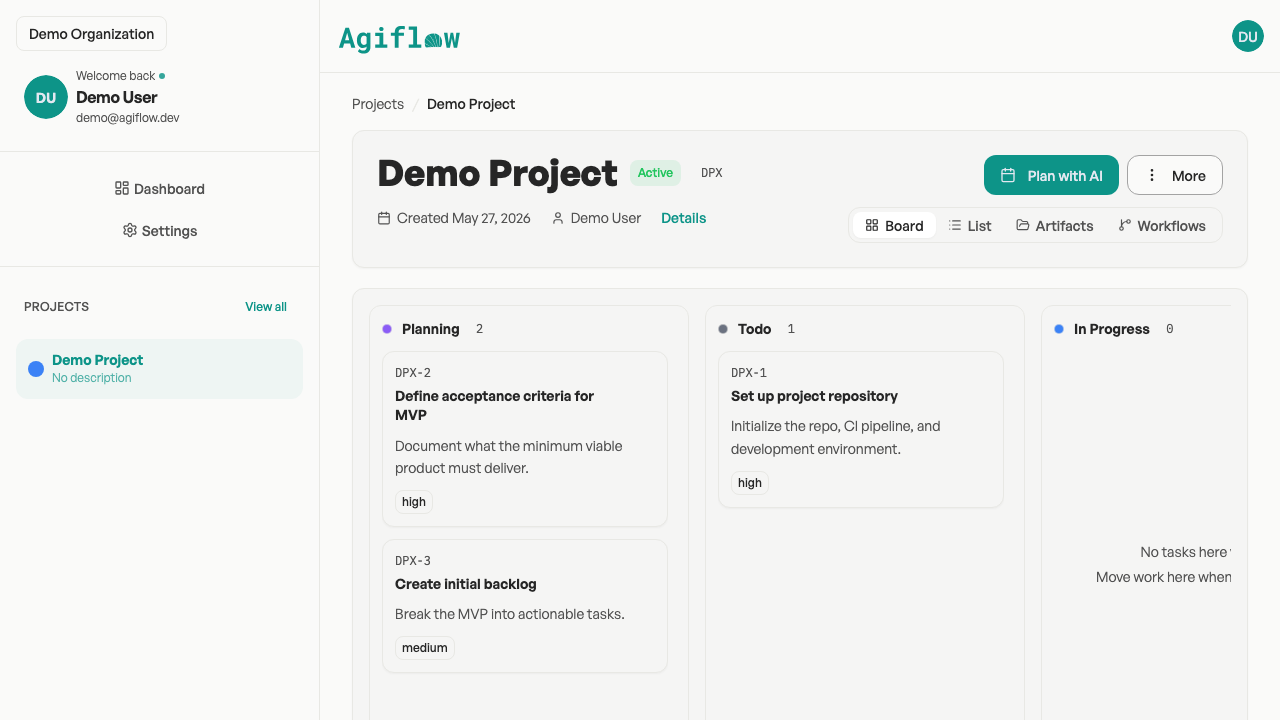
We should see task cards for all three titles in Acme Website Refresh. Each card appears in its selected status column.
Verify the board
Choose Board in the project header. Confirm the project title and all three task titles are visible.
Limitations and recovery
Onboarding appears only for a workspace that needs setup. Otherwise use New project. If a task is missing, use More > New task to add only it. If the board is empty, refresh once and confirm the selected project before trying again.
We created the same first board
We now have an Acme Website Refresh board with work we can inspect in Agiflow. Next, learn how Agiflow organizes projects, work units, and tasks.
Need connection help? Read the ChatGPT connection guide.