How-to guide
Manage project tasks on mobile and with an AI assistant
Published · Last updated
Find, review, update, and verify the same Agiflow project task from the mobile app or a connected AI assistant.
At a glance
Use the mobile Board for direct review and edits. Use Agiflow MCP when you want an assistant to find or update the same task. Verify either path by reopening the task slug in the mobile app.
Manage a task in the mobile app
Open the selected project's Board, review the task, update only the fields you need, then reopen it to confirm the saved result.
Prerequisites
- You are signed in to the Agiflow mobile app.
- You can access the project that contains the task.
- The project has at least one task.
Find and review the task
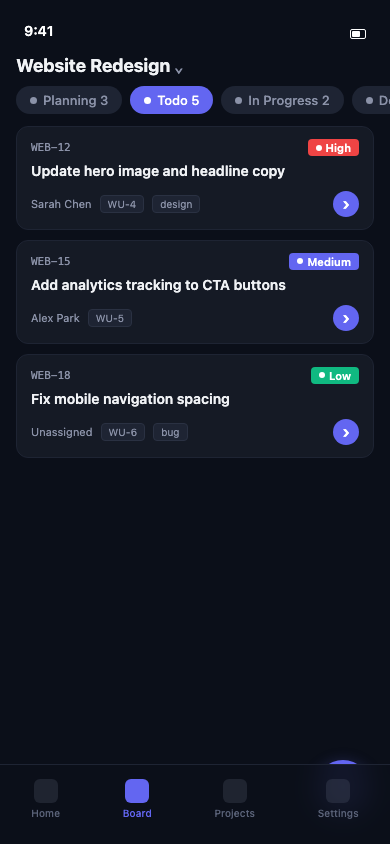
- Open Board from the bottom navigation.
- Select the project name under Projects and choose the correct project.
- Keep Board selected in the project tabs.
- Use All work units when you need to narrow the board.
- Select the status lane that contains the task.
- Find the task by slug and title, then tap its card.
Confirm the slug, status, priority, assignee, title, description, tags, and comments belong to the intended task.
Update and verify the task
To change the title, description, priority, or tags, tap Edit in the header, change only the required fields, then tap Save Task. To change status, tap Move in the bottom action bar and choose an allowed target in Update Status.
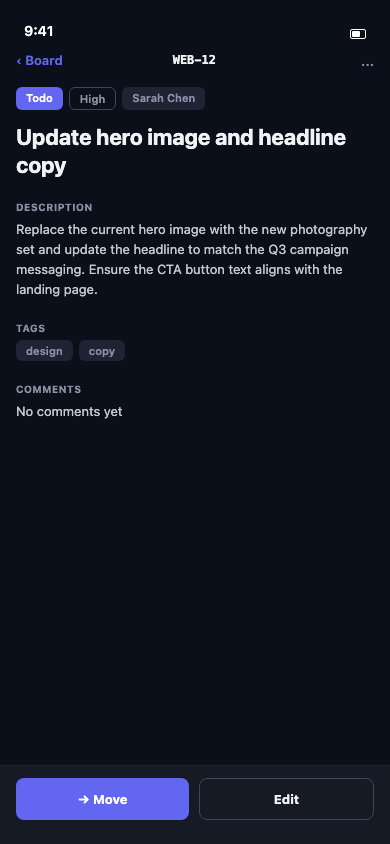

Reopen the task and compare its saved fields with your change. For a status update, return to Board, select the destination lane, and confirm the same task slug appears there.
- If the task is missing, confirm the project, work-unit filter, and status lane.
- Pull down to refresh when a saved change does not appear.
- Editing tags replaces the task's tag list, so keep every tag that should remain.
- Restore the app connection before retrying a failed save.
Next steps
Review how projects, work units, tasks, and status lanes fit together, or compare supported AI connections.