Tutorial
Get started with Agiflow on mobile
Published · Last updated
In this tutorial, we will create a blank Mobile Launch project on mobile, add one task in the app, then add another task from an external AI client connected to Agiflow. By the end, both tasks will be visible on the same mobile Board.
Quick start
Agiflow keeps mobile actions and authorized MCP actions in the same project state. Create or open a project on mobile, connect the external client to that project or its workspace, then refresh the matching status lane on mobile to see the work it created.
- Create Review the mobile launch checklist from the mobile app.
- Create Share the mobile launch update from the external client.
Start the shared board on mobile
Before you start
- The Agiflow mobile app on iOS or Android.
- An Agiflow account that does not have a workspace yet.
- An internet connection.
Sign in and create the first project
- Open Agiflow. At Welcome back, sign in with the method available for your account. For email sign-in, enter EMAIL and PASSWORD, then select Sign in.
- At AGIFLOW SETUP, enter Studio Projects under Workspace name, then select Continue.
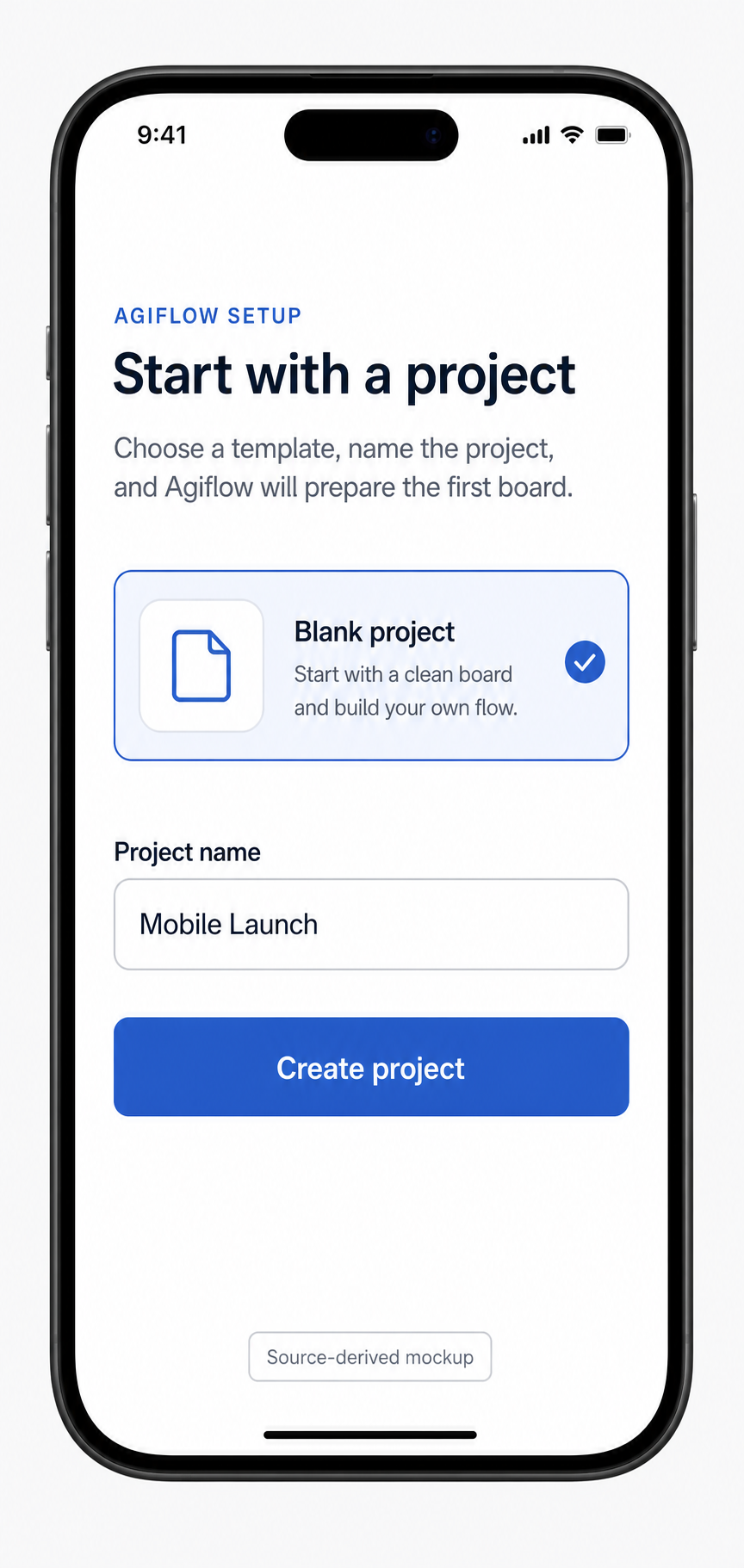
- At Start with a project, select Blank project.
- Enter Mobile Launch under Project name, then select Create project.
- When You're ready for Inbox appears, select Go to Inbox to finish setup.
- Select Board in the bottom navigation. Confirm that Mobile Launch is the selected project.
Add a task from mobile
- On the Board view, select the + button.
- In Create Task, enter Review the mobile launch checklist under Title.
- Keep the preselected Status, then select Create Task.
The task detail should open for Review the mobile launch checklist.
Expected result
We now have a Mobile Launch project and a task created from the mobile app. The task is stored in the selected status lane on the shared project board.
Verify the mobile task
Return to Board, confirm Mobile Launch is selected, then open the status lane used during task creation. We should see Review the mobile launch checklist as a task card.
Limitations and recovery
Social sign-in buttons appear only when that provider is available for the current app configuration. If email sign-in is not shown, use the provider button available for your account.
Onboarding appears only when the signed-in account has no workspace. If Agiflow opens directly to the app, select Board. Use New or Create project to create Mobile Launch, then continue with the task steps.
If the Board does not load, confirm the selected project and pull down to refresh after the connection is restored.
Continue with the shared board
We created one task on mobile and another through an authorized external client, then verified both on the Mobile Launch Board. Agiflow is now the shared project state for both paths.