How to upgrade when you hit a plan limit
Published · Updated
If a plan limit blocks your work, an organization owner or admin can upgrade in Agiflow. Open Organization Settings, choose Billing, open Subscription, choose an interval, and complete checkout.
At a glance
Choose the supported upgrade path
Use the Agiflow UI to change a subscription. A connected AI assistant can help you find that page, but it cannot read billing usage, start checkout, or change a subscription through Agiflow MCP.
In either path, choose Monthly or Yearly, complete checkout in Stripe, confirm the current plan in Agiflow, then retry the action that was blocked.
01 · Agiflow UI
Upgrade your plan in Agiflow
Prerequisites
You need owner or admin access to the organization, an active organization, and authority to complete checkout for your team.
Steps
- If the Upgrade Required dialog is open, select Upgrade Plan.
- Otherwise, open Organization Settings, choose Billing, then open Subscription.
- On the Basic plan card, choose Monthly or Yearly.
- Select Subscribe Monthly or Subscribe Yearly.
- Complete checkout in Stripe, then return to Agiflow.
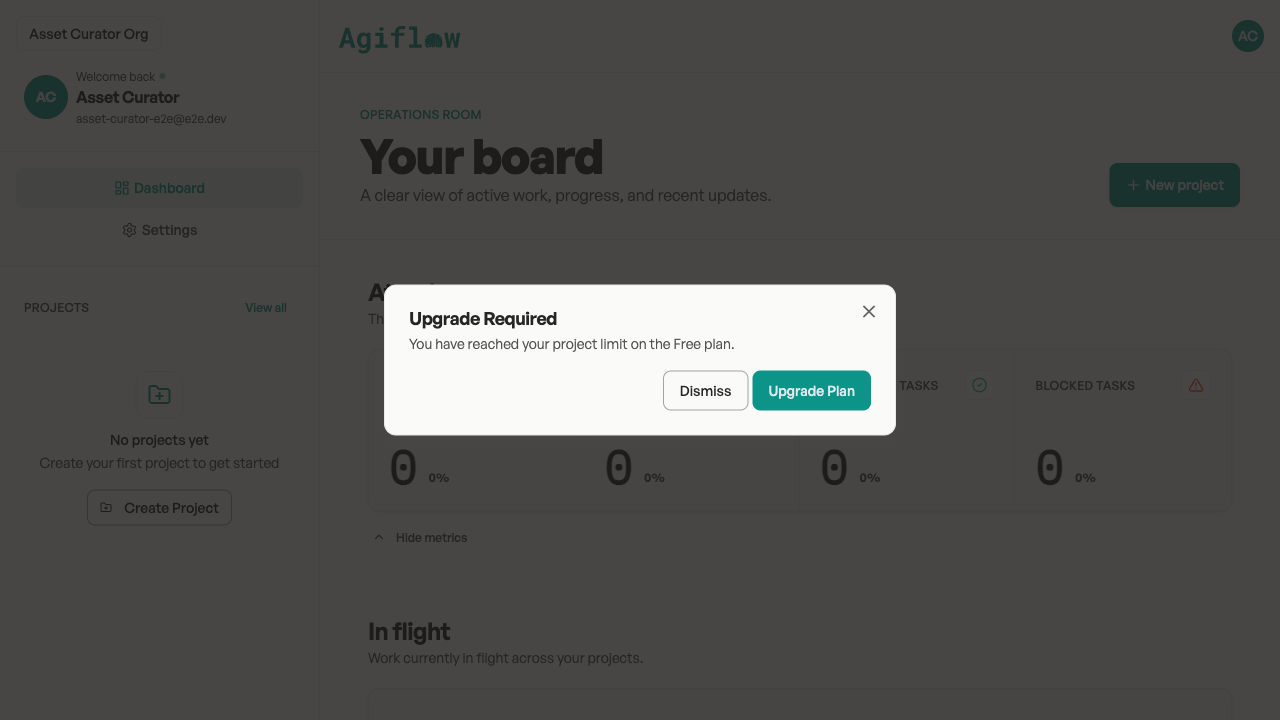
Expected result
After checkout and the subscription update complete, Basic is shown as your current plan.
Verify the result
- Return to Organization Settings, Billing, Subscription, and confirm Basic is current.
- If needed, open Credits & Usage and review Projects, API Keys, MCP Servers, and Seats.
- Retry the action that was blocked.
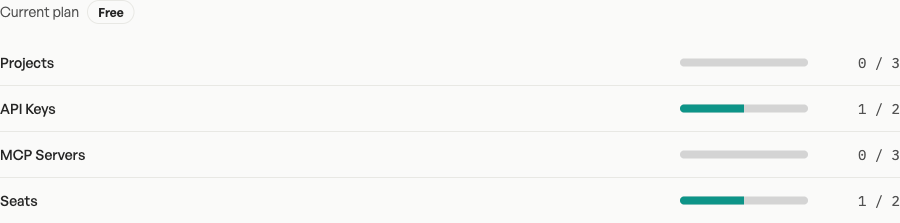
Limitations and recovery
- Only an organization owner or admin can open billing settings.
- If the plan still shows Free after checkout, refresh Subscription before trying again.
- If you cannot upgrade, reduce the resource that reached its limit, then retry the blocked action.
- If the plan is current but the action remains blocked, check Credits & Usage and contact support.
Next steps
Check your usage or get help
- Check current usage.
- Review the billing plans reference.
- If the block persists, email support@agiflow.io.
Need more help?
Review current usage or contact support if the block persists after your plan updates.